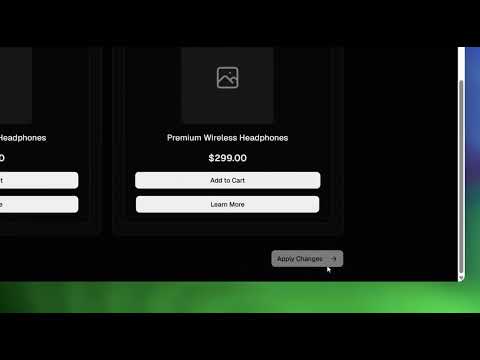
This project is an AI-powered UI change simulator built with Next.js, TypeScript, and Tailwind CSS. It allows users to propose changes to a product page layout using natural language prompts, and then visualize these changes in a "Before" and "After" comparison view. The system supports iterative design, enabling users to apply simulated changes and build upon them with subsequent prompts.
- AI-Powered UI Modification: Describe desired UI changes using natural language prompts, and watch the AI generate the new layout.
- "Before" and "After" Comparison: Clearly visualize the impact of AI-suggested changes side-by-side with the original design.
- Iterative Design: Use the "Apply Changes" functionality to make the simulated "After" state the new "Before" state, allowing for a continuous design refinement process.
- Dynamic Component Rendering: The system can dynamically render new UI components or modify existing ones based on the AI's output.
- Modern Tech Stack: Built with Next.js (App Router), TypeScript, Tailwind CSS, and
shadcn/uifor a robust and visually appealing interface.
To get this project up and running locally, follow these steps:
- Node.js (v18.x or later)
- pnpm (recommended package manager)
- Clone the repository:
git clone https://github.com/your-repo/ai-change-simulator.git cd ai-change-simulator - Install dependencies using pnpm:
pnpm install
Before running the application, you need to set up your Gemini API key. Create a .env.local file in the root of your project and add the following:
GEMINI_API_KEY=YOUR_GEMINI_API_KEYReplace YOUR_GEMINI_API_KEY with your actual Gemini API key. You can obtain one from Google AI Studio.
To start the development server:
pnpm devOpen http://localhost:3000 in your browser to see the application.
- Enter a Prompt: In the "Prompt Input" area, type a description of the UI change you want to simulate (e.g., "Add a button below the add to cart button with text 'Learn More'").
- Simulate Change: Click the "Simulate Change" button. The AI will process your request, and the "After" preview will update to reflect the proposed changes, with new or modified elements highlighted.
- Iterate or Apply:
- To continue experimenting, modify your prompt and simulate again.
- To accept the changes shown in the "After" preview as your new baseline, click the "Apply Changes" button. The "Before" view will then update, allowing you to build further modifications on the new design.
- Advanced Diffing: More granular highlighting and animation for subtle changes.
- Broader Component Support: Expand
ThemePreviewto render a wider variety of UI components and styling properties. - Platform Integration: Connect with actual e-commerce platforms (e.g., Shopify, WooCommerce) to apply changes directly or generate theme code.
- User Authentication: Implement user accounts to save and manage different design iterations.